Offline Messages
- Offline Messages List
- View Offline Messages
- Select Status And Assign User
- Internal Note
- Delete Offline Messages
Offline Messages List
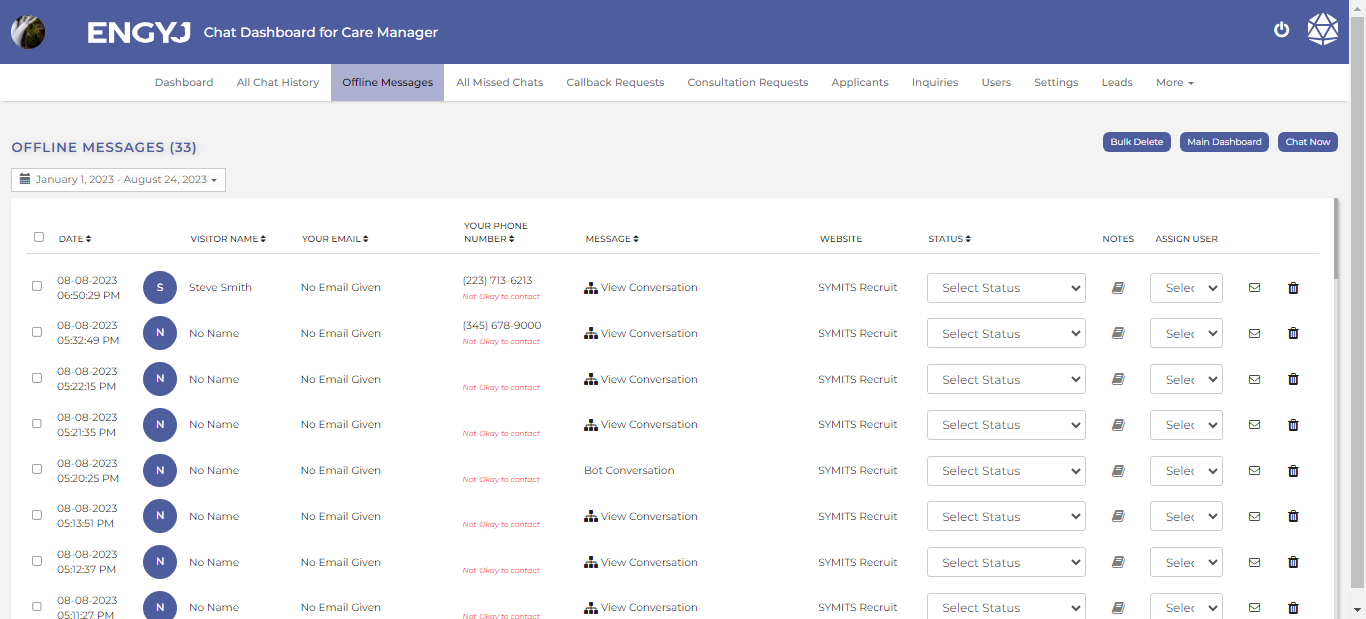
If the admin is offline and a visitor sends a message, the message will be saved in the "Offline Messages" section for the admin to check later.
To view Offline Messages, go to the Offline Messages menu item.
Here, you will find a record of all offline messages.
View Offline Messages
To view Offline Messages, go to the Offline Messages menu item.
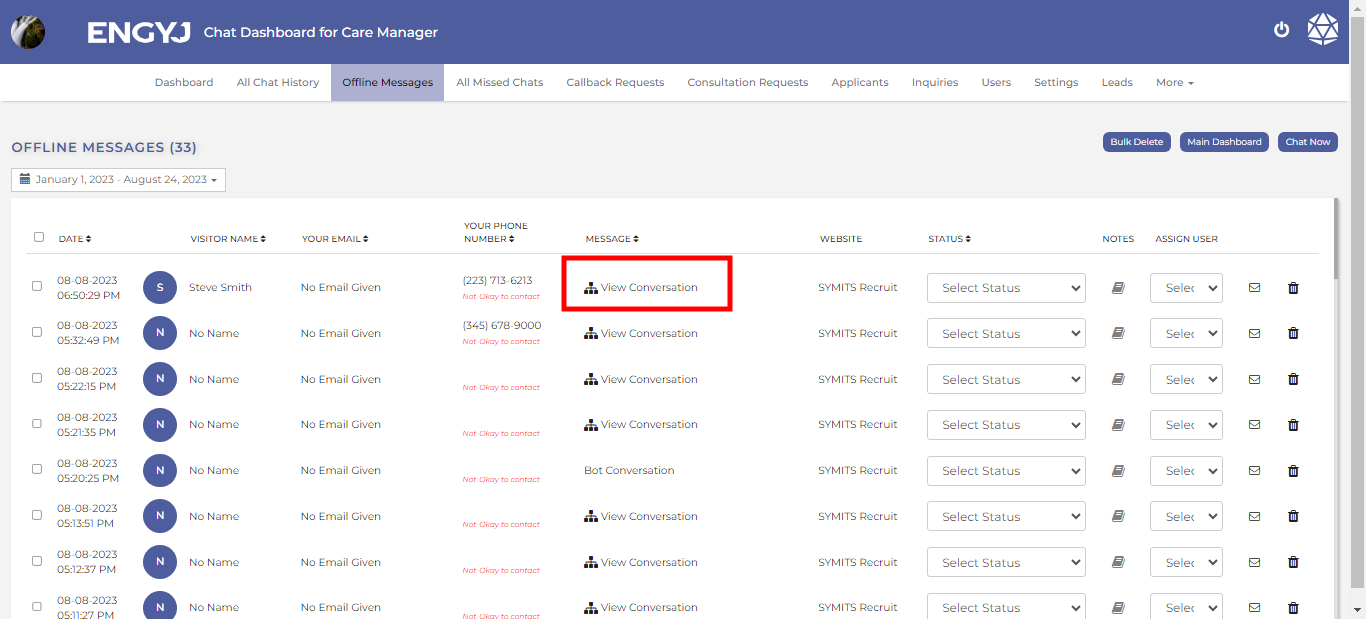
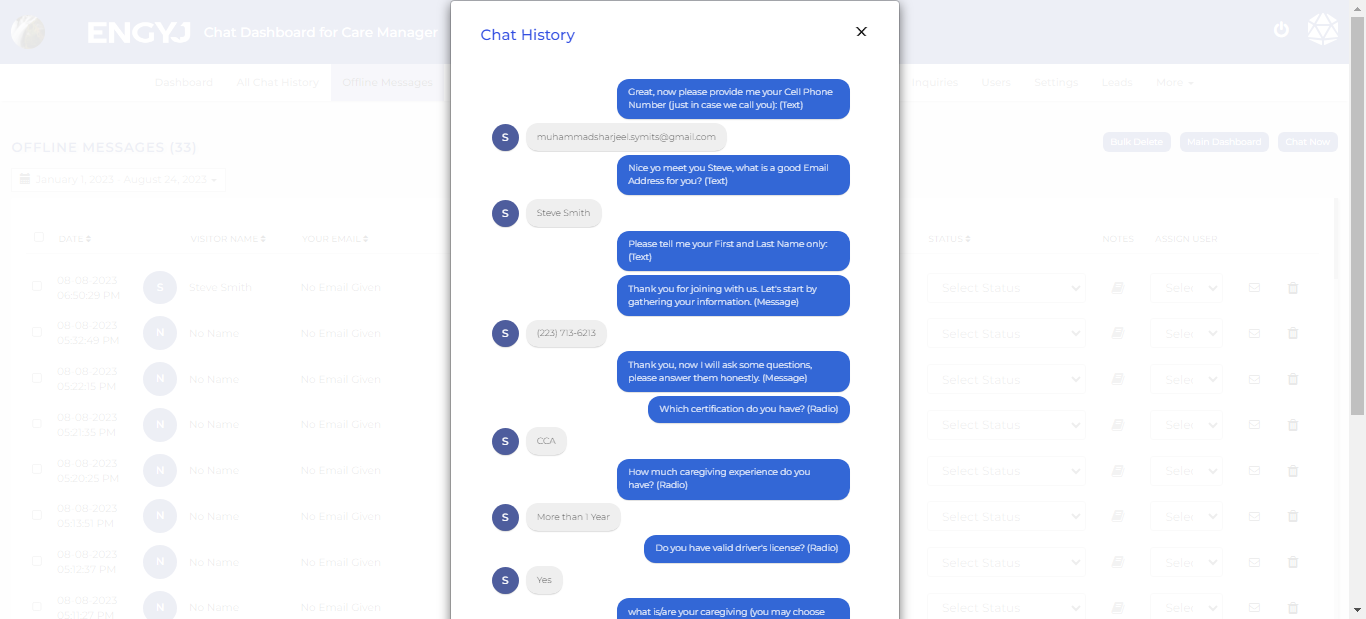
From here, you can also view the chat. Simply click on "View Conversation" in the message column.
The dialogue box for the chat will open up.
Select Status And Assign User
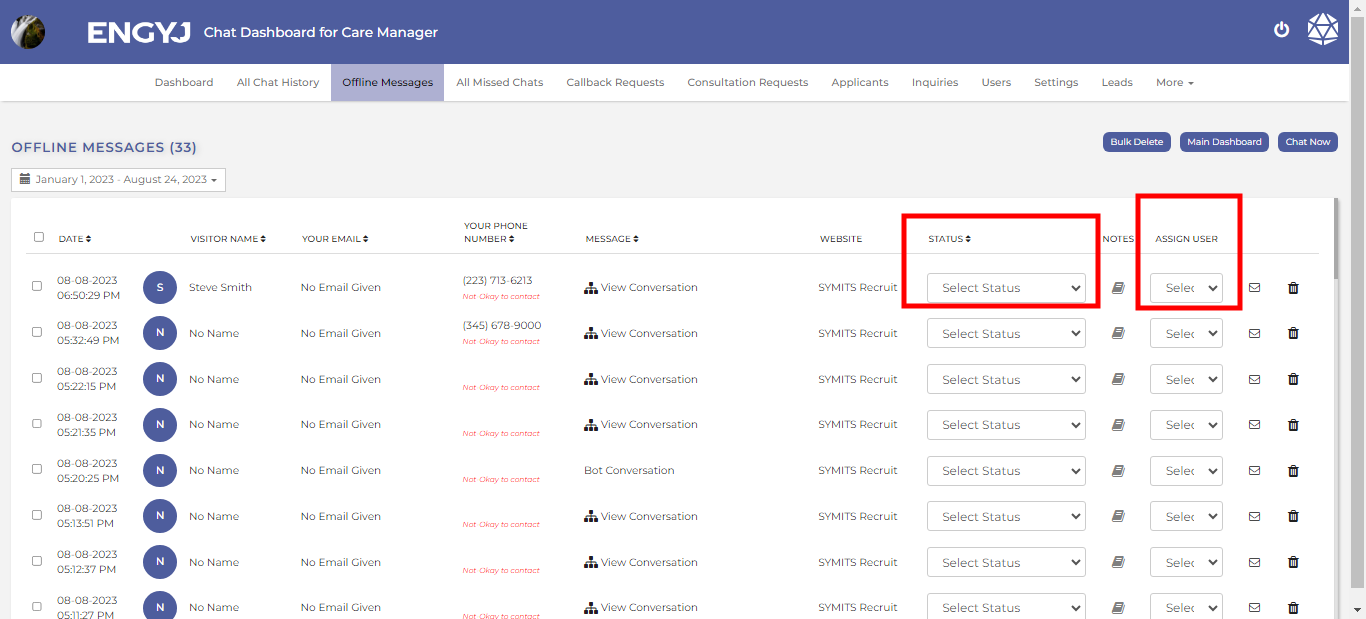
Go to the Offline Messages menu item.
From here you can select the dropdown option available here to change status and assign user.
Internal Note
To add internal note to Offline Messages, go to the Offline Messages menu item.
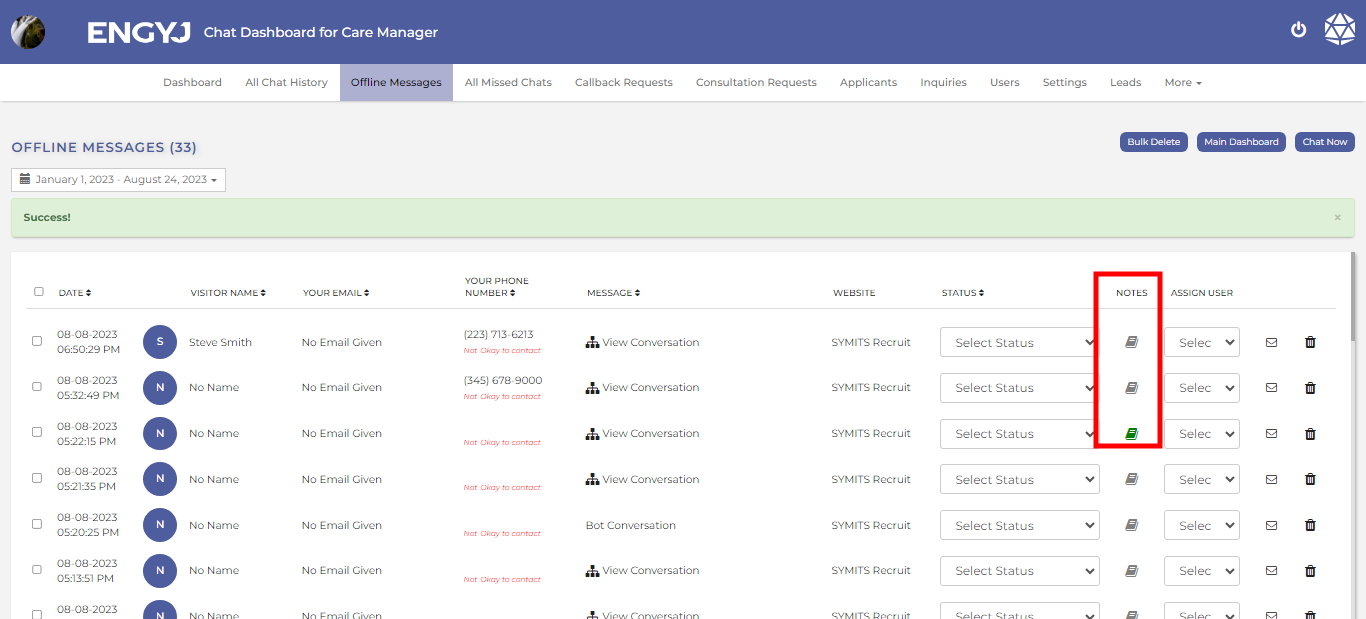
Here, the admin can also add an internal note by clicking on the book icon.
The chat that has an internal note attached will have its book icon displayed in green.
To send mail, go to the Offline Messages menu item.
Here admin can send mail to the customer by clicking on the mail icon.
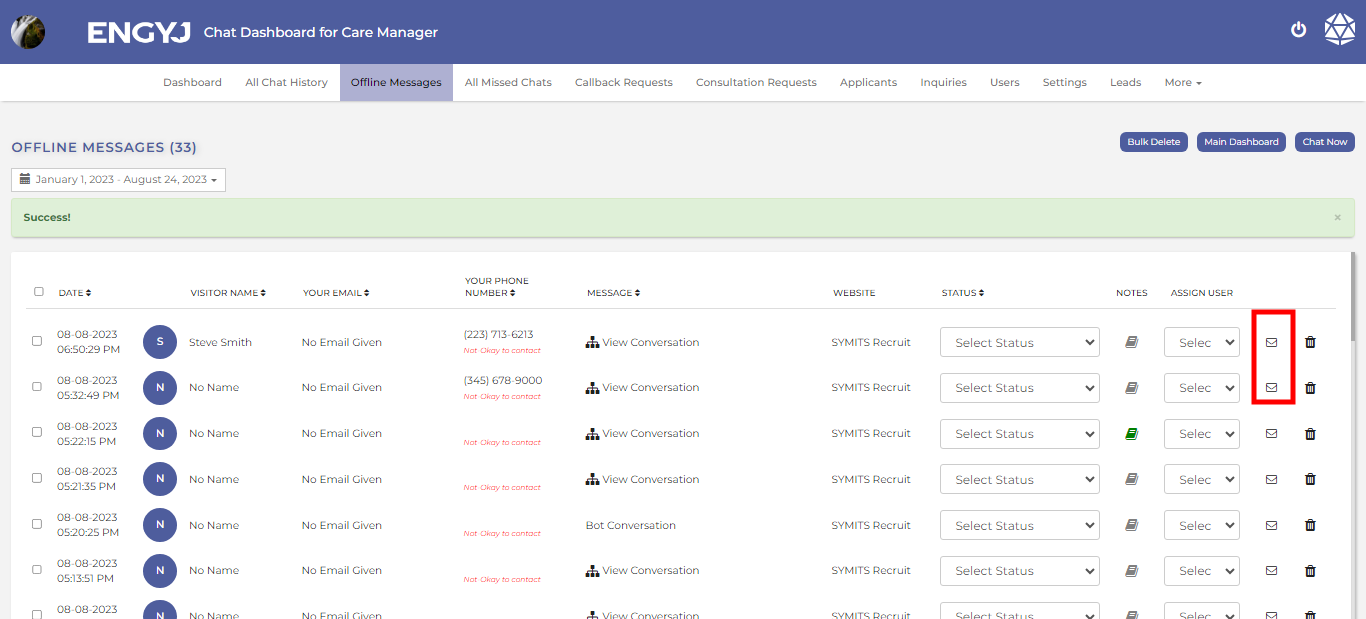
After clicking on it, It will redirect you to mails.
Delete Offline Messages
To delete Offline Messages, go to the Offline Messages menu item.
You can delete a chat by clicking on the delete icon in the right column.
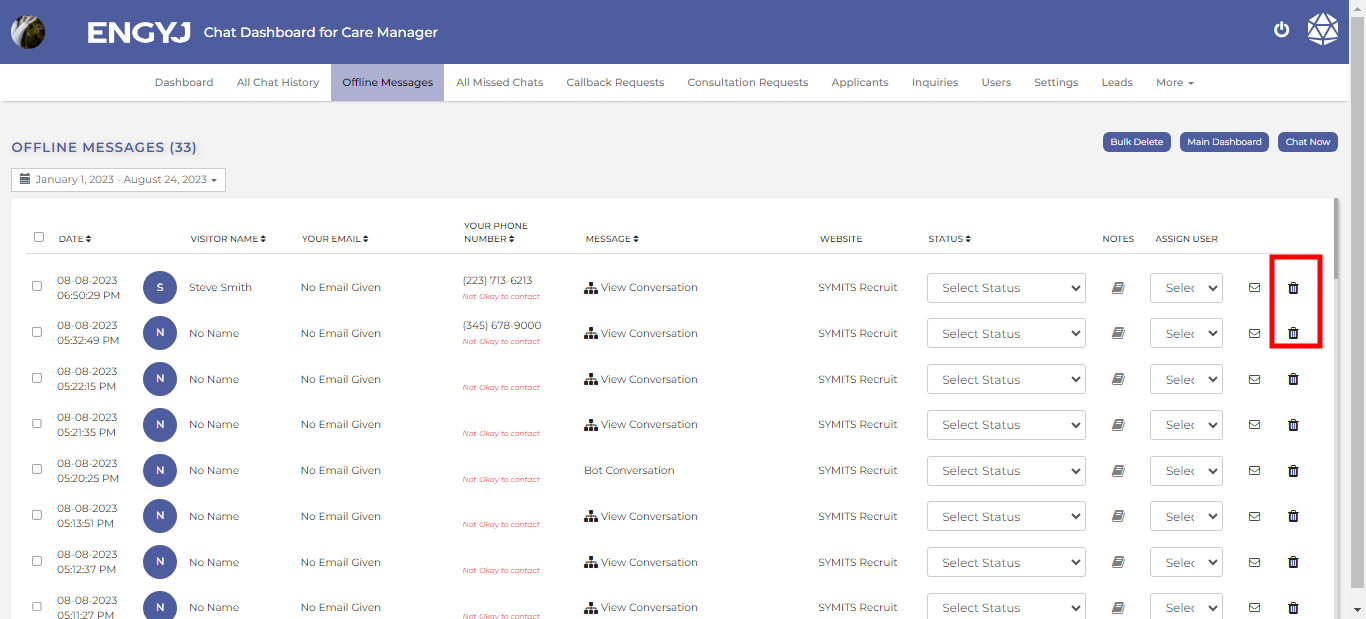
This will open a confirmation popup box with YES and No options to confirm before deleting a Chat. If chosen YES, then the Chat will be deleted from list.