Mobile app
- Chat Invite And Accept Notification
- Ongoing Chat
- Chat History
- Missed Chats
- Offline Messages
- Call Requests
- Admin Settings
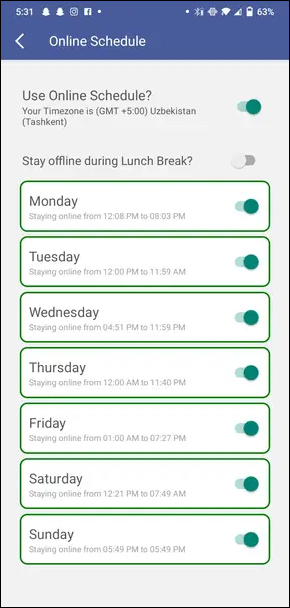
- Online Schedule Settings
Chat Invite And Accept Notification
When a visitor initiates a chat on the website, the system detects the incoming request.
At the same time, if the user is using his mobile app and is currently online, he'll immediately receive a notification alerting him to a new chat request.
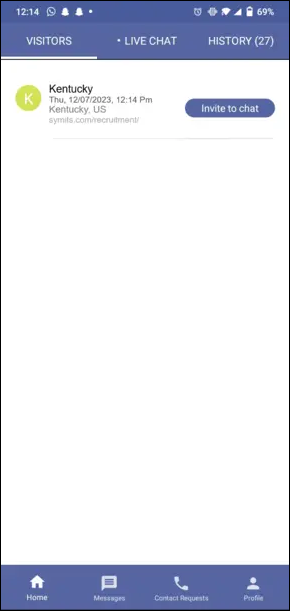
When a visitor sends a chat, the user will receive the option to either accept or decline it on the "Visitors" screen on the user's side..
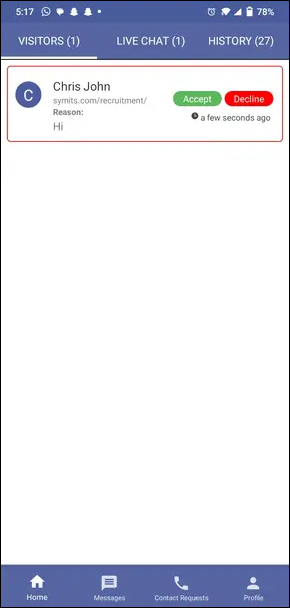
If the user accepts the chat, the visitor will receive a message indicating that the user has joined the chat. From there, they can communicate with each other.
Ongoing Chat
Visitor and user can start a chat session within this interface. Upon the user's acceptance, a dedicated chat window promptly opens for both parties.
Visitors and users can easily exchange chat messages. Visitors or users can send attachments to each other by clicking on the attachment icon.
The user can view the visitor's personal information by clicking on their name.
Users can efficiently forward relevant conversations to others using the chat forwarding feature by clicking on the three dots icon.
Users and visitor can choose to end the chat whenever they want, making the engagement experience user-friendly and flexible.

Chat History
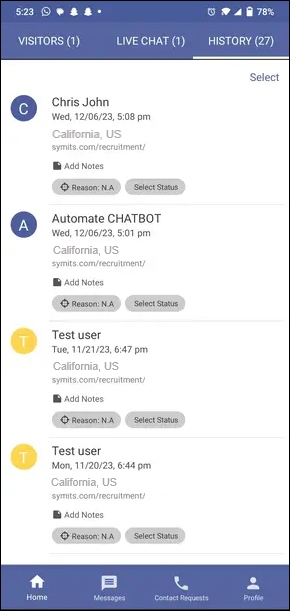
When a chat session ends, whether initiated by the visitor or the user, the entire conversation history is automatically saved.
The preserved conversation is easily accessible within the "History" screen on the user's side.
This feature makes it easier for the user to manage and oversee things. It provides detailed information about the visitor and allows the user to make any needed changes.
Missed Chats
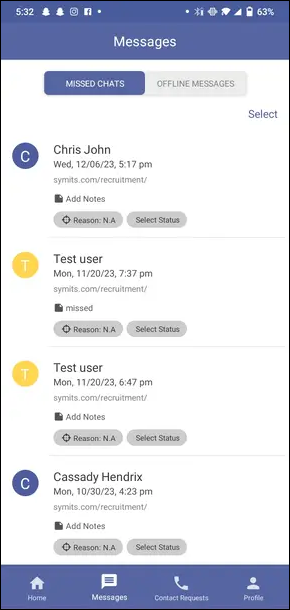
This section shows missed messages, making it easy to find and respond to them.
If the user misses incoming messages, there's a special "Missed Chats" section integrated into the user panel.
Offline Messages
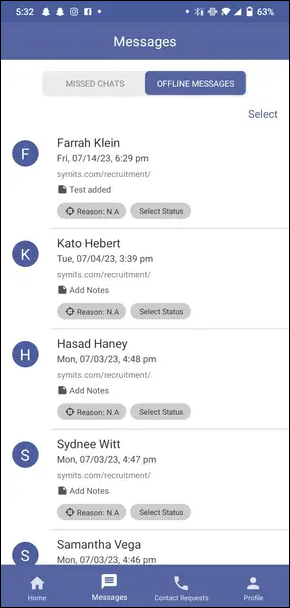
When the user is not available, a specific feature becomes active.
If a visitor starts a chat when the user is offline, their messages will be automatically redirected to the offline messages section on the user's side.
Call Requests
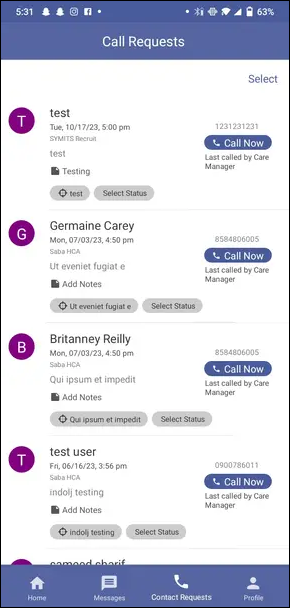
Users can see all the Callback Requests from the APP by Navigation to the Call Requests menu on the bottom.
Admin Settings
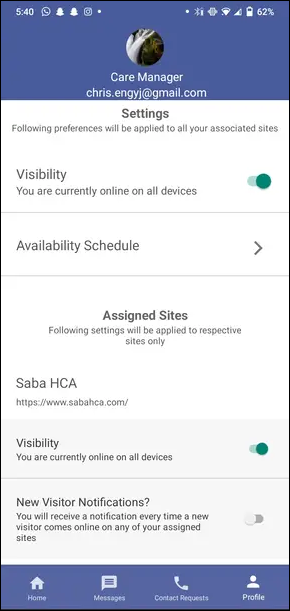
Users can easily customize how they appear online using a user-friendly Mobile APP.
The APP allows users to set schedules for when they are available, giving them flexibility in managing their online presence for optimal accessibility.
The APP provides the option to turn notifications on or off when every new visitor comes to the website.
With these extensive controls, users can easily handle their online presence, improving visitor engagement through personalized and fine-tuned interactions.
Online Schedule Settings
We're excited to introduce our robust online scheduling system, where users can customize their availability with precision.
Users can easily adjust their availability on different days and time intervals using intuitive and user-friendly schedule settings.