Index
- Introduction
- Chat Now
- Visitor On a Webpage
- Invite Visitor
- Visitor Accept Invite
- Visitor Request Admin For The Chat
- Admin Accept Visitor's Request
- Live Chat
Introduction
Engyj
Brief Description About Engyj:
Engyj is a robust management application designed to streamline and enhance the Management and Marketing process for organizations. It offers a user-friendly interface and a range of features to efficiently manage various stages.
As of now, Engyj continues to grow in popularity and has successfully served a growing number of satisfied customers.
Chat Now
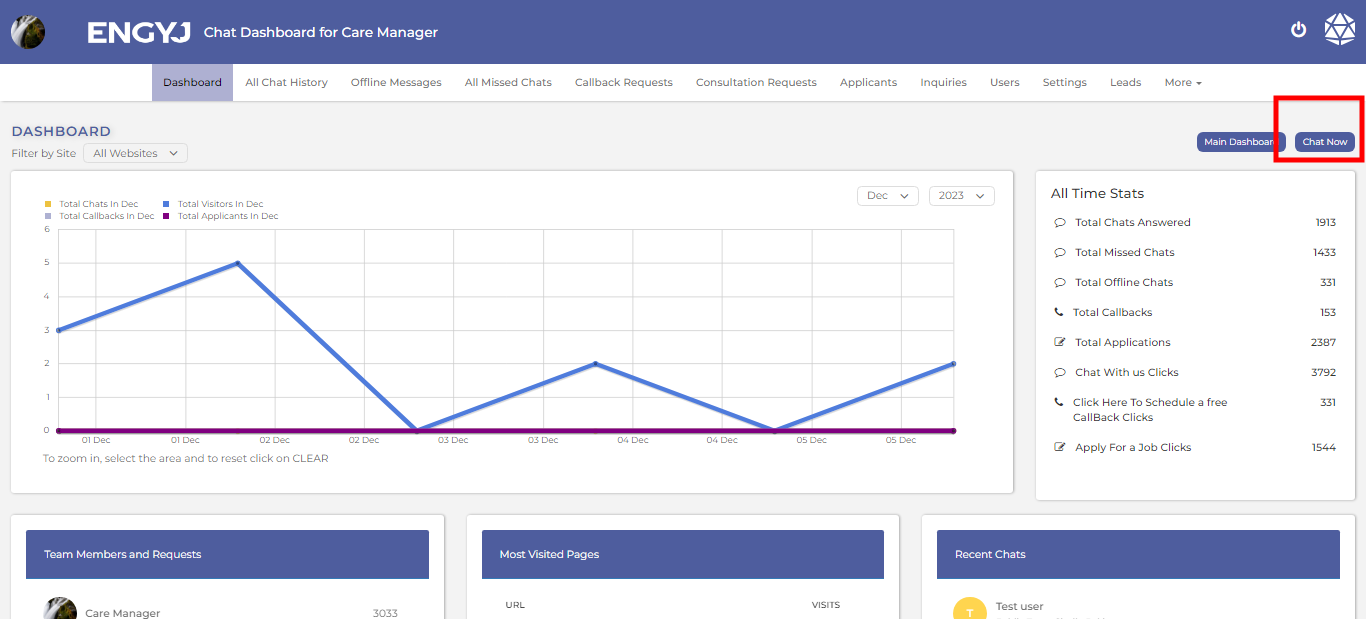
When the admin logs in, they will be directed to the dashboard by default, and there will be a 'Chat Now' button in the right corner. Using this link admin can easily Start chatting with the visitors of their website.
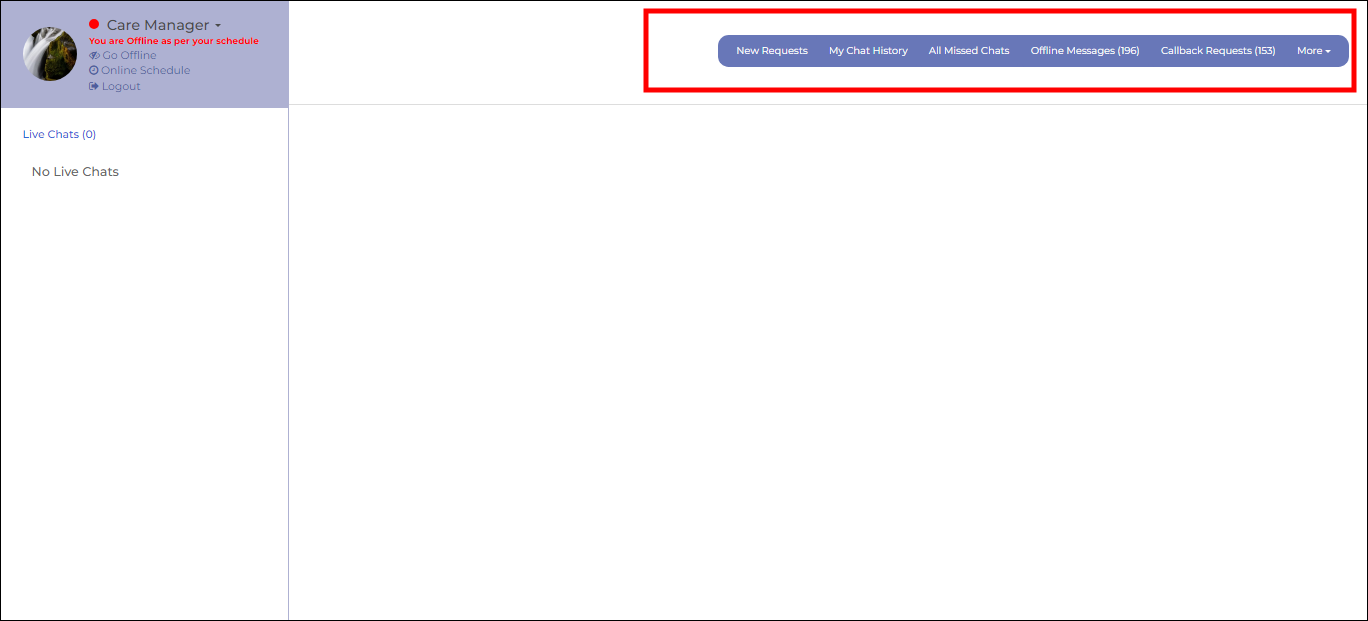
Clicking on that button will redirect you to the Chat Now page. Here you can view different stats from the highlighted area.
Visitor On a Webpage
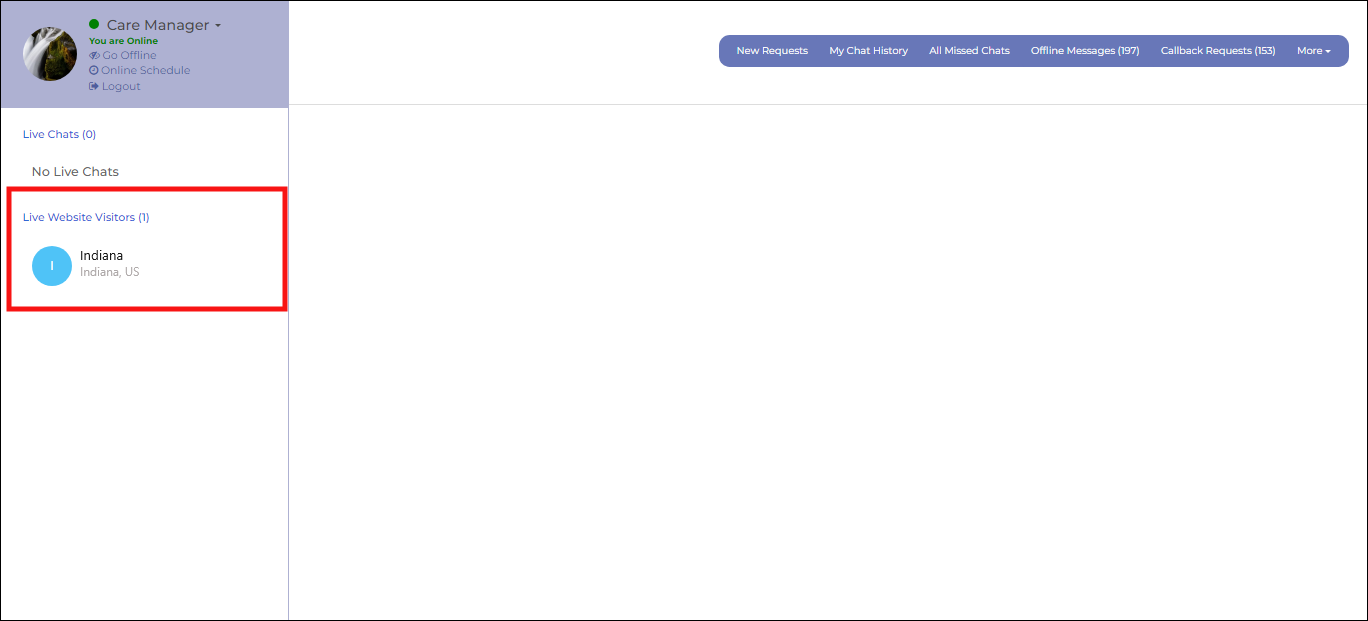
If a visitor visit on the webpage, Admin can see the visitor on his live chat panel below the live chat in the left column, there will be a section titled "Live Website Visitors," where the current visitors will be displayed.
Invite Visitor
Certainly! The admin has the ability to invite the visitor who is on the webpage for a chat.
Admin can simply click on the user's name, and then the chat section will open in the center with the visitor's details on the right side.
The admin can send a message to invite the visitor for a chat.

Visitor Accept Invite
The visitor can accept the admin's invite on the webpage, and the admin's invitation message will be displayed.
If the visitor wishes to chat with the admin, they can click on the "Start Chat" button to initiate the conversation.

Visitor Request Admin For The Chat
If a visitor is on the webpage and wants to contact the admin, he can click on the "Chat with Care Manager" button. It will send a chat request to the admin. If the admin is online and accepts the request, the live chat will start.

Admin Accept Visitor's Request
When the admin receives an invitation to chat with the visitor, two options will appear. First, a request message alert will appear at the bottom right
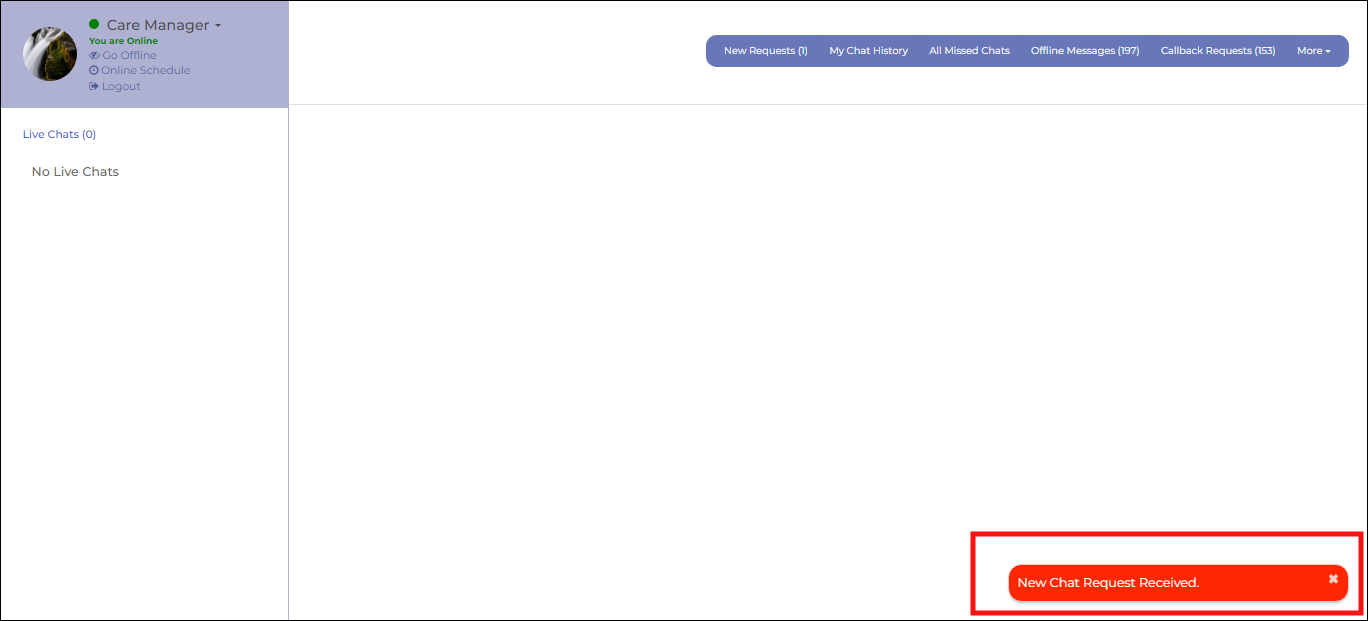
Clicking on it will prompt an alert box with two buttons: one to accept and the other to decline the live chat.

Live Chat
When both the user and the applicant are online, if one of them sends a request and the other accepts it, the live chat will begin, and they can communicate each other.

From this point, the admin has the ability to assign the visitor a status, add internal notes, and forward the chat.
Both the admin and the visitor have the option to close the chat.